



Six Practical Small Business Email Tips
Email is still where most business actually gets done. Six things I set up on every email account, from using your own domain to deciding whether your signature needs an image at all.
Most of the business you do still happens over email: quotes, invoices, scheduling, the client who'd never call. Here are six things I set up on every email account I run.
1. Use Your Own Domain Name
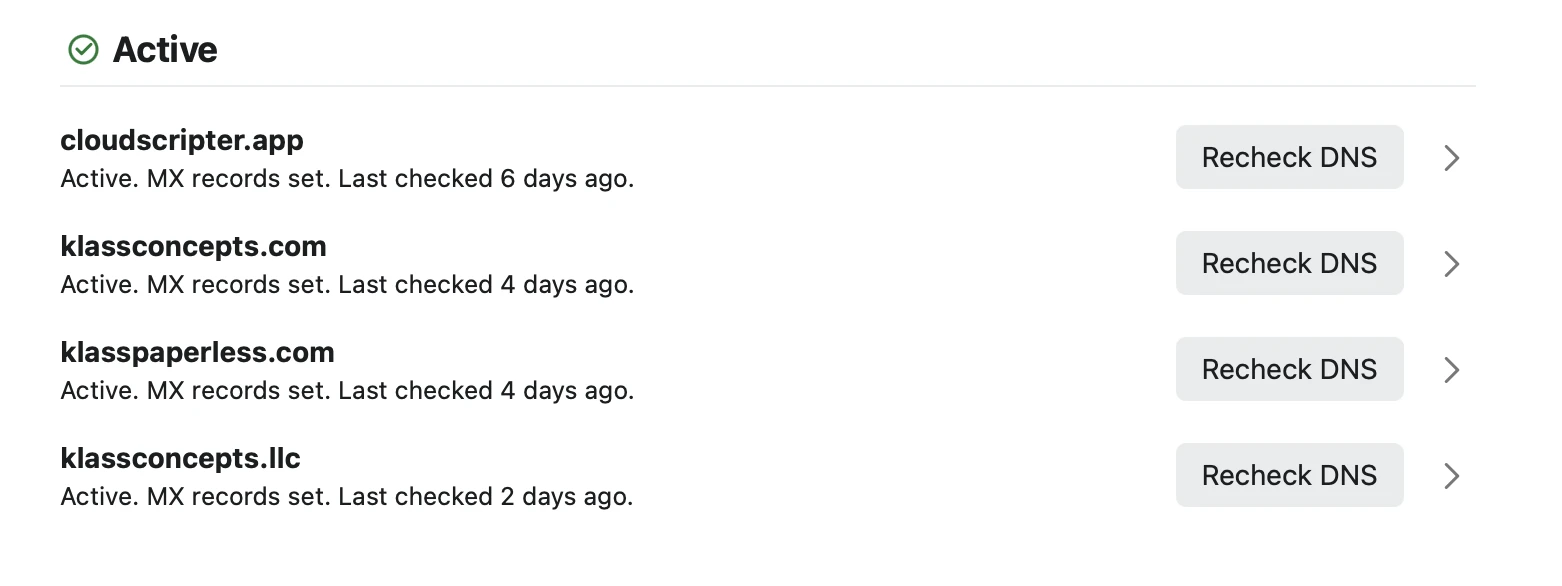
Your business looks much more professional if you use your own domain name for your email, rather than a free Gmail account. All of my email accounts, both personal and business, across several different domain names, are hosted by Fastmail. I've been with them for years and whole-heartedly recommend them. If you're looking for a more budget-friendly option, Spacemail is a good choice. Both mail providers have several different tiers of service, depending on your particular needs.
2. Organize With Folders
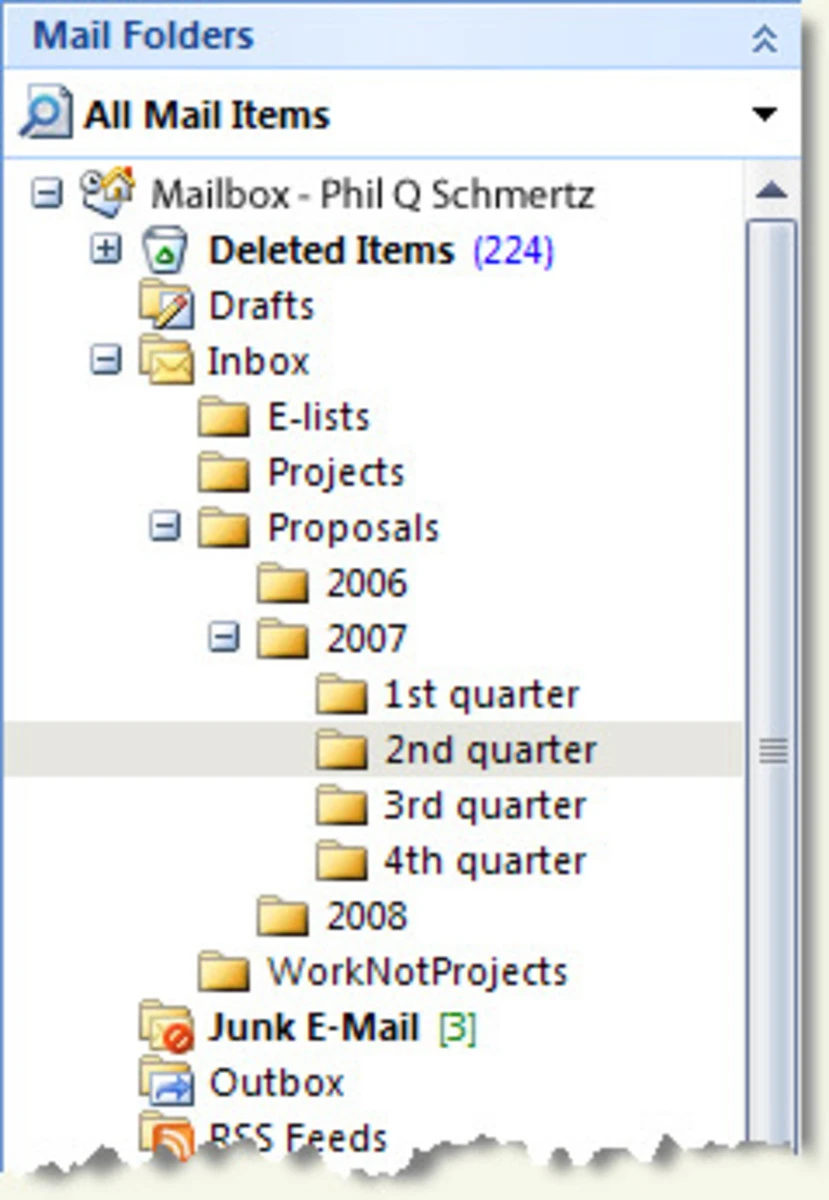
Like on your computer, you can create folders for organization. It becomes very difficult to find things quickly when you keep all of your messages in your one inbox.
And organization isn't just about creating folders - I recommend adopting an organizational system like the PARA Method and/or Johnny Decimal, both of which help you decide where things go before the inbox fills up.
3. Receive Emails at Multiple Addresses With A Catch-All Address
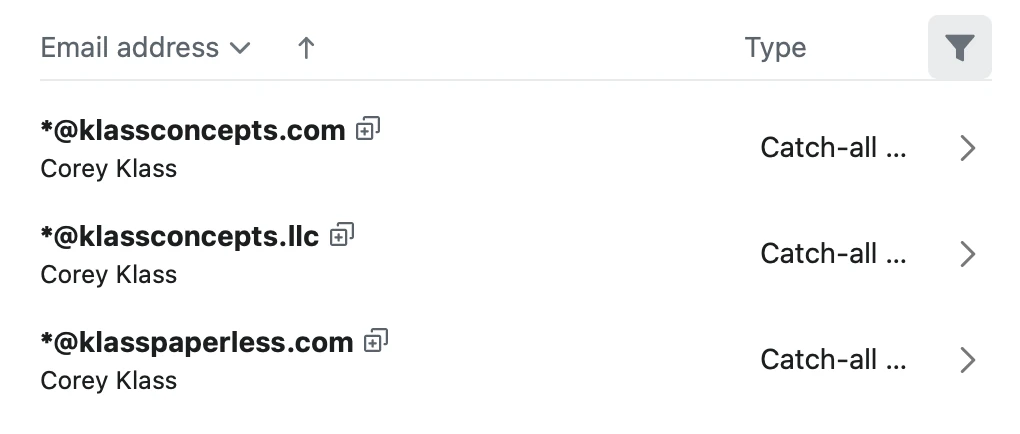
Instead of always using your primary email address, you can make your business appear larger and more professional if you receive email at different addresses for different purposes, eg. [email protected], [email protected].
But you don't need to have multiple accounts to receive email at multiple addresses. You can set up your email to have a catch-all address, which drops emails sent to any address at your domain into your inbox. And you don't even need to set these addresses up beforehand -- you can create them out of thin air and they'll automatically go to your inbox.
This is also useful for creating unique email addresses when signing up for online services or mailing lists, so you can figure out later who's selling your email address to marketers.
4. Send Emails From Multiple Addresses With Aliases
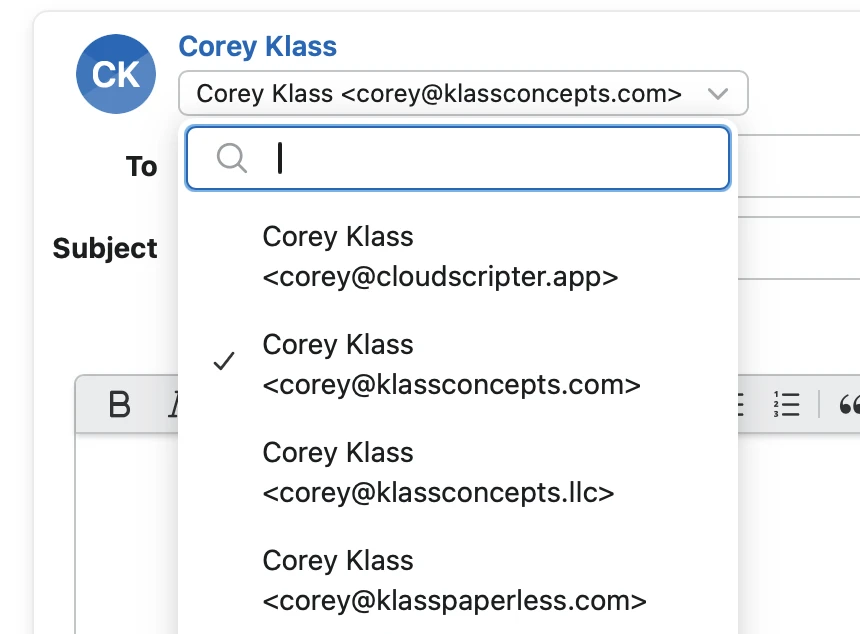
If you want to send emails from different addresses too, you can create email aliases. This way, you can respond from [email protected] too instead of only receiving emails at that address. It's another good way to appear larger and more professional.
Plan ahead though, because depending on the email plan you choose, you may have a limited number of aliases available to you.
5. Automatically Organize Your Messages With Rules / Filters
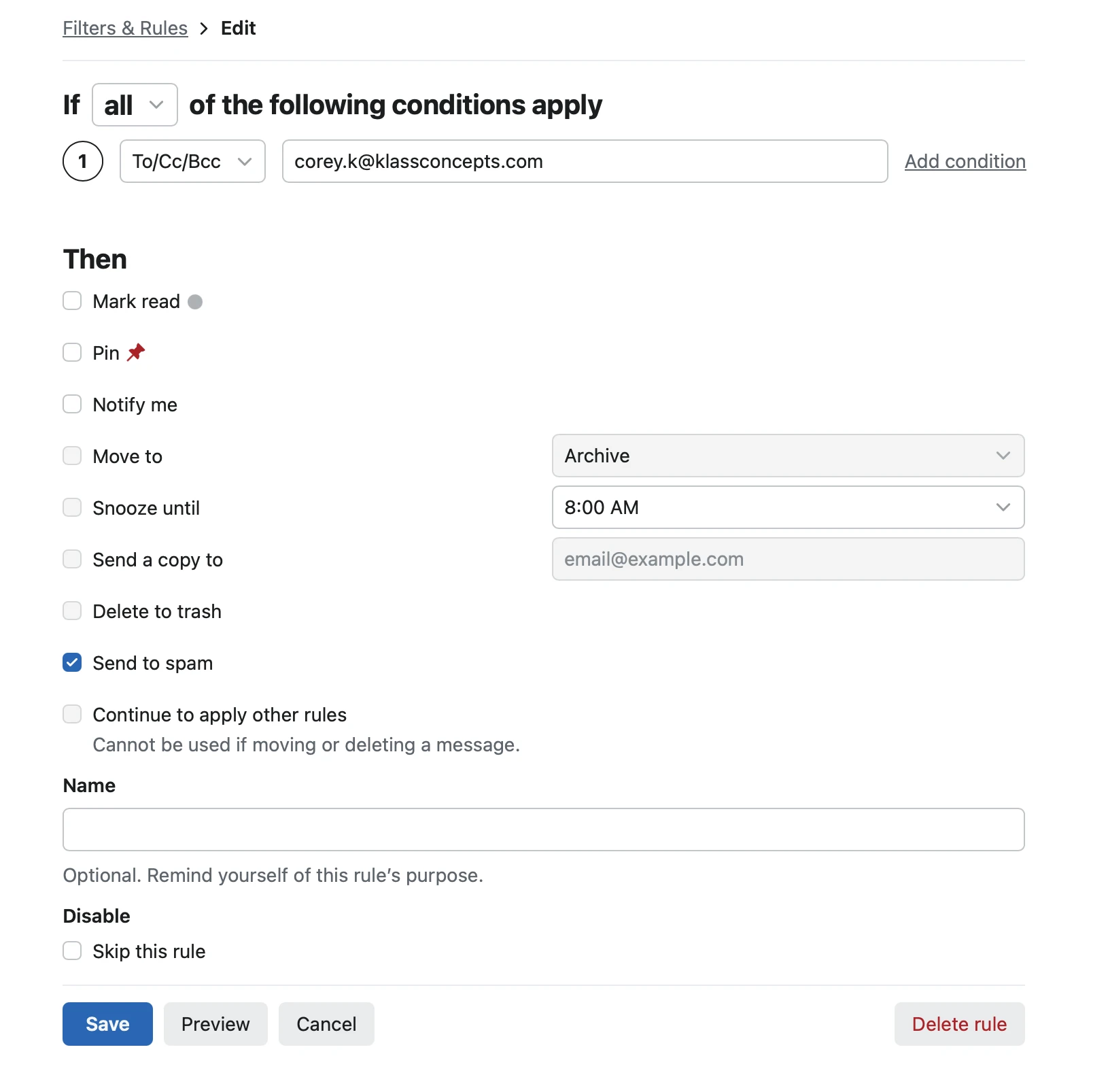
Mail rules (also called filters) are small triggers that automatically process emails for you as they're received by your inbox. You can set the trigger to run based on which email address a message was sent to, or who it was sent from, or if the subject or content contains a particular word or phrase. The trigger can typically file away that message into a folder, or mark it as spam, or even (depending on your email provider) automatically send a response to the sender to let them know that their message was received.
These types of rules will save you time from having to sift through a cluttered inbox, and you can deal with different types of emails in your own time and on your own terms.
6. Signature Images
Putting your photo or logo in your email signature is a great way to give your messages a more personal or professional touch, depending on what you're going for. But technical limitations should make you think twice about if that signature image is really needed.
URL-Based Images
Adding signature images with a web URL (aka "remote" images) is a convenient way to include your photo or logo. But there are several issues to consider:
- Many email programs and corporate IT policies prevent remote image loading by default. So your signature image appears as a blank box or a box with an X or ? in it until someone clicks the "Load Remote Images" button, which they may never do.
- How long will that remote image be available at that URL? Websites undergo numerous redesigns and rewrites throughout their lives, and often-times the URL structures are altered and old images are moved or removed. If I refer to your email weeks, months, or even years later, will your signature image still be there?
Attached Images
Attaching your signature image to your message is a good way to guarantee that the image will (almost) always appear for the recipient. But there are tradeoffs here too that you need to consider:
- Images attached to emails make them much larger, even larger than the original image file. Email was originally built for text, so your email program has to convert the image to supported text characters, potentially doubling the size of the file or more.
- These larger messages take longer to deliver and will use more space on someone's computer. Especially because each message you send includes a separate copy of your image, leaving duplicates, triplicates, and more taking up space.
Where to start
If you only do one of these, do the first: a custom domain is the one the other five build on, and it's the first thing a new client notices. If you'd rather have it set up for you, that's the email fix.
Enjoyed this? Get more practical tips in your inbox.
Every so often I send a short note about something I fixed for a small business, or a tool worth knowing about.